HighLevel SaaS Mode Payment Provider Selection Update
HighLevel SaaS Mode Payment Provider Selection Update: A Cleaner Setup Experience
Setting up SaaS subscriptions or rebilling for sub-accounts is an important step for agencies using HighLevel SaaS Mode. The payment provider you choose affects how billing is handled, where payment data is managed, and how smoothly the subscription setup process works.
HighLevel has now improved the payment provider selection screen in SaaS Mode, making it easier for users to understand their options before creating a new SaaS plan or enabling rebilling.
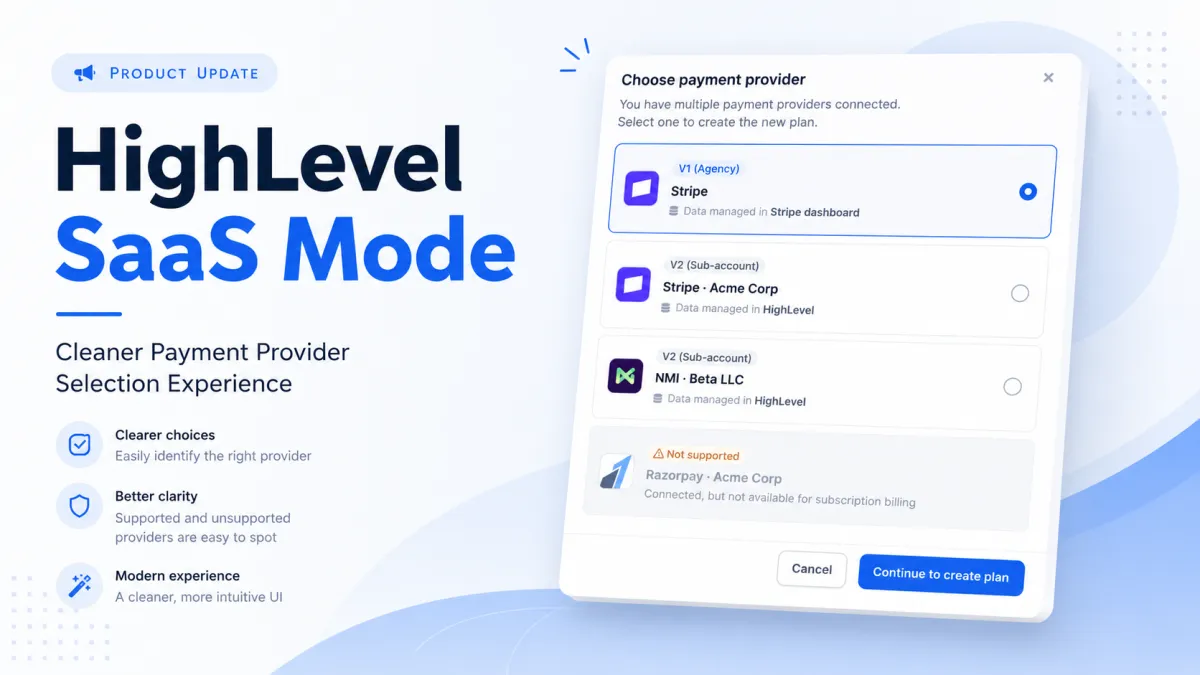
Instead of choosing from a basic dropdown, users now see a cleaner card-based provider selection screen with clearer details, upfront compatibility notices, and a more consistent setup experience across different SaaS workflows.

What’s New in the SaaS Payment Provider Selection Screen?
HighLevel has redesigned the provider selection step that appears when setting up SaaS subscriptions or enabling rebilling for sub-accounts.
The new screen displays available payment providers as visual cards. Each card gives users important context before they continue, including the provider name, logo, version type, and where billing data is managed.
This makes it easier to compare options side by side and choose the right payment provider before moving forward.
Visual Provider Cards Replace the Dropdown
One of the biggest improvements is the move from a dropdown selection to a visual card layout.
Each payment provider now appears as its own card, making the setup screen easier to scan and understand. These cards can show details such as:
Payment provider logo
Provider name
V1 or V2 version label
Whether the provider is connected at the agency or sub-account level
Where the billing data is managed
For example, users can clearly see the difference between a V1 agency Stripe connection and a V2 sub-account payment provider.
This is helpful because SaaS billing setup is not something users want to guess through. The new layout gives users more clarity before the plan is created.
Clearer Details on Where Billing Data Is Managed
The updated provider selection screen also explains where payment data is managed.
Some providers may show that data is managed inside the Stripe dashboard, while others may show that data is managed directly in HighLevel.
This is an important detail for agencies because it helps them understand how billing, subscriptions, and payment records will be handled after setup.
Instead of selecting a payment provider without enough context, users can now make a more informed decision from the beginning.
Unsupported Providers Are Now Clearly Marked
Another helpful improvement is the way unsupported payment providers are displayed.
Previously, users could run into issues later in the setup process if they selected a payment provider that could not be used for SaaS subscription billing.
Now, unsupported processors are shown upfront with a clear “Not supported” label.
This helps prevent confusion and saves time because users can immediately see which providers are available for SaaS billing and which ones are not.
For example, a provider may be connected to the account, but if it is not available for subscription billing, it will appear as unavailable instead of letting the user continue and fail later in the setup flow.
A More Consistent SaaS Setup Experience
HighLevel has also made the provider selection experience more consistent across different SaaS setup entry points.
The same redesigned screen now appears when users are:
Enabling SaaS from the Manage Client panel
Enabling rebilling
Using bulk actions from the Locations list
Creating a new SaaS plan in SaaS Configurator
This matters because agencies may start SaaS setup from different areas inside HighLevel. A consistent interface reduces confusion and makes the process easier to follow every time.
Step Progress Indicator Makes Setup Easier
The setup process now includes a step progress indicator, such as:
Step 1 of 3: Choose Payment Provider
This small improvement makes the setup flow feel more guided. Users can clearly see where they are in the process and how many steps remain.
For agencies setting up SaaS for multiple sub-accounts, this creates a smoother and more predictable experience.
Bug Fixes Included in This Update
This release also includes bug fixes related to SaaS activation.
HighLevel resolved issues that could previously prevent SaaS activation from completing properly, including:
A silent error that stopped the plan selection screen from appearing
A bug that could send users to step 2 instead of step 1 when reopening the setup
These fixes help make the SaaS setup process more reliable and reduce friction during activation.
Why This Update Matters for Agencies
For agencies using HighLevel SaaS Mode, choosing the right payment provider is a key decision.
It affects how client subscriptions are billed, how payment data is managed, and how easy the setup will be to maintain later.
The improved payment provider selection screen helps agencies:
Choose the correct payment provider with more confidence
Understand whether billing data is managed in Stripe or HighLevel
Avoid selecting unsupported providers
Save time during SaaS setup
Reduce activation errors
Follow a consistent setup flow across HighLevel
Set up SaaS subscriptions and rebilling with fewer surprises
This is especially useful for agencies managing multiple sub-accounts or setting up SaaS plans at scale.
Final Thoughts
The redesigned payment provider selection screen is a practical improvement for HighLevel SaaS Mode.
It may seem like a small interface update, but it solves a real workflow issue. Agencies can now compare provider options more clearly, see compatibility upfront, and move through the SaaS setup process with more confidence.
For teams using SaaS subscriptions or rebilling, this update makes the first step of setup cleaner, safer, and easier to understand.


